
The three things to remember
Form
Values you are reviewing or editing. They are not live yet.
This chart
The settings currently controlling this Rendiq Trade Manager instance.
Preset
A reusable named setup you can load on another chart.
Know what you are editing
The top panel always shows Settings in use. The source is emphasized so you can identify the live state at a glance.
| Status | Meaning |
|---|---|
| Built-in defaults | The chart is using Rendiq Trade Manager’s original settings. |
| Custom | The chart is using applied values that are not currently identical to a named preset. |
| name.set | The chart’s applied reusable values match that named preset. |
| Editing · Not applied | The form changed, but the chart still uses the source shown above. |
| Editing · Modified | You changed a loaded named preset. The primary action becomes Save & apply. |
Apply changes to this chart
- Change any values across any settings tabs.
- Check the Editing row to confirm the form is pending.
- Press Apply.
- The dialog stays open and the Editing row disappears when the chart is updated.
If any field is invalid, Apply is disabled and the reason remains visible until you edit again. Apply is also disabled when nothing differs from the live chart.
The Editing row disappears immediately, Settings in use shows the applied source, and every runtime feature refreshes from the complete saved form.
Load a preset
- Press Load preset….
- Select a named preset from the list.
- Press Load into form.
- Review every tab. The chart has not changed yet.
- Press Apply when ready.
Reusable presets intentionally do not carry Magic number, chart symbol, timeframe, account identity, or chart identity. Loading a preset never replaces the current form’s Magic number.
Load into form changes editable fields and shows a pending Editing state. Nothing on the chart changes until Apply succeeds.
Save a new preset
- Prepare the desired values in the form.
- Press Save as preset….
- Enter a short, recognizable name such as Conservative or London Session.
- Press Save preset.
- The file is saved and selected as the form source, but live behavior still waits for Apply.
- Press Apply when you want the chart to use it.
If a name already exists, Rendiq Trade Manager asks before replacing it. It never silently overwrites a preset.
The named preset becomes the form source and is available to other charts in this terminal. The current chart remains unchanged until Apply.
Update an existing preset
- Load the named preset into the form.
- Change its values.
- The form shows Modified, and Apply changes to Save & apply.
- Press Save & apply to update that preset and activate the same values on this chart.
If the same preset was updated from another chart after you loaded it, Rendiq Trade Manager refuses to overwrite the newer version. Reload it, review the new values, and make your change again.
Reset the form to built-in defaults
Press Reset to place the original built-in values into every tab. Reset does not change the chart immediately and does not delete a preset. Press Apply if you want those defaults to become live.
The form source becomes Built-in and shows an Editing state if the live chart differs. Applied behavior changes only after Apply.
Delete a preset
Open Load preset…, select a named file, and choose Delete preset. Confirm the deletion. Charts already using those values keep their applied settings, but the deleted name is no longer available to load.
The name disappears from the preset list. Existing charts keep their values; on later verification, a missing named source is classified as Custom.
What survives, and what starts fresh?
| Action | Result |
|---|---|
| Restart MetaTrader | This chart’s applied settings return. |
| Change symbol, timeframe, account, or EA inputs on the same chart | This chart’s applied settings remain. |
| Close the chart, remove Rendiq Trade Manager, or replace the chart template | This chart’s private settings are discarded. |
| Add Rendiq Trade Manager again or open a new chart | Starts with built-in defaults; load a preset if desired. |
What each settings tab controls
Default mode, capital base, risk values, and button steps.
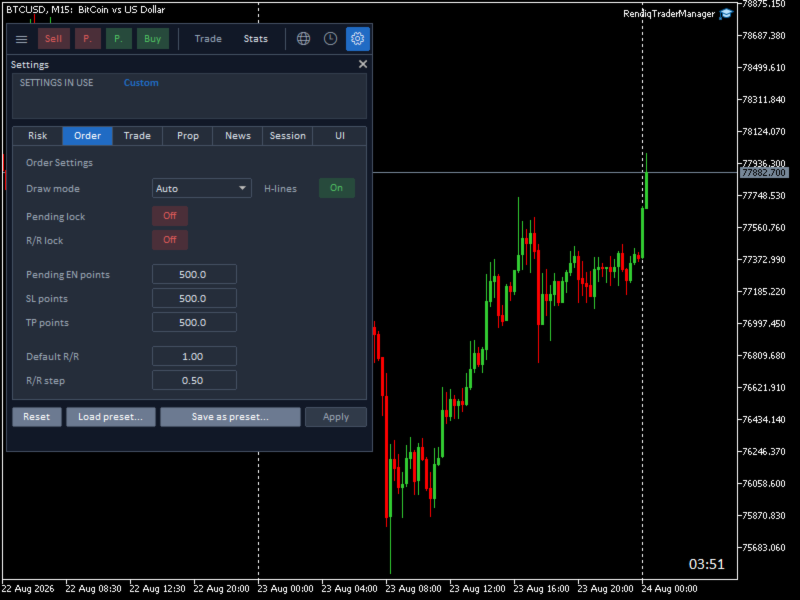
Draft sizing, pending lock, R/R lock, default distances, ratio, and step.
Default position view, Magic, comment, slippage, and partial-close percentages.
Protection switch and account-wide limits.
Impacts, holidays, forecast, currencies, chart focus, and visible rows.
Sydney, Tokyo, London, and New York visibility.
Candle time, dock orientation, and dock position.
Complete settings reference
Risk tab
| Risk mode | Fixed lot, Percent, or Amount—the default selected when you prepare an order. |
| Capital base | Balance or Free Margin. Used only when risk mode is Percent. |
| Fixed lot | Default volume in Lots mode. |
| Fixed-lot step | How much the order dialog’s − / + buttons change fixed lot. |
| Risk percent | Default percentage in Percent mode. |
| Percent step | How much − / + changes the percentage. |
| Risk amount | Default account-currency amount in Amount mode. |
| Amount step | How much − / + changes the money amount. |
Order tab
| Draw mode | Auto sizes the first chart draft visually; Points uses your saved distances. |
| Pending lock | When on, moving a pending entry carries SL and TP with it. |
| R/R lock | When on, Rendiq Trade Manager preserves the chosen ratio while related prices move. |
| Pending EN points | Initial pending-entry distance when Points mode is used. |
| SL / TP points | Initial stop and target distances in Points mode. |
| Default R/R | Ratio offered when a new order draft opens. |
| R/R step | How much the R/R − / + buttons change the ratio. |
Trade tab
| Default position view | Chart symbol or Entire account when the Trade dialog opens. The dialog can temporarily override it. |
| Magic number | Identifier attached to new Rendiq Trade Manager orders. It does not filter the Trade dialog and is not saved in reusable presets. |
| Comment | Short broker order comment used for new submissions. |
| Slippage (points) | Maximum permitted execution deviation for applicable broker requests. |
| Partial close 1 / 2 / 3 | The three percentages offered by trade-management actions. |
Prop tab
Protection switch, Maximum DD, Daily DD, Profit target goal, Total SL risk, and Max positions/orders are explained fully in the Prop protection guide.
News tab
Default impact filters, holidays, forecast/previous values, chart-currency focus, visible rows, and individual currencies are explained in News settings.
Session tab
Choose which of Sydney, Tokyo, London, and New York can be drawn when Sessions is active.
UI tab
| Candle time | Shows or hides the bottom-right current-candle countdown. |
| Dock layout | Horizontal or Vertical. |
| Dock X / Dock Y | Horizontal and vertical chart offsets for dock placement. |