
Choose the position view
Chart Symbol
Shows every open position and active pending order for the current chart symbol.
Entire Account
Shows open positions and active pending orders across all symbols in the trading account.
It intentionally shows the account positions in scope, including manual trades and trades from other tools. Changing this filter in the Trade dialog is temporary; the default is set under Settings → Trade.
The compact controls share one row: Symbol / Account stays on the left and sets the scope, while Pos. / Pend. stays on the right and chooses the content. The active choice in each pair is filled; the inactive choice is outlined. The counts make hidden exposure visible without mixing the two tables.
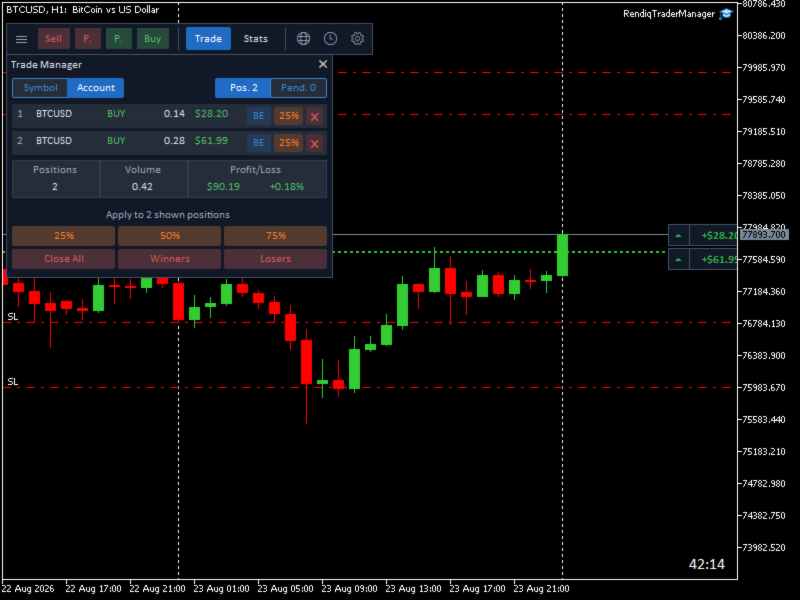
Read a position row
| Field / action | Meaning |
|---|---|
| Number | Row position in the current view. |
| Symbol | The position’s own trading symbol. |
| Type | Buy or Sell. |
| Lot | Current open volume. |
| P/L | Net open result, including swap and known commission. |
| BE | Requests stop loss at the exact entry price. |
| % | Partially closes the configured portion. |
| Close icon | Closes that one ticket. |
In the separate Pending orders view, each row shows its symbol, pending type, volume, and entry price. Position-only actions are removed; use the red delete icon to cancel the exact pending-order ticket.
Select a trade for chart visualization
Click a position row, a pending-order row, or the body of a compact chart panel to select it. Rendiq Trade Manager draws that item’s entry, SL, and TP on the current chart. Click the selected item again to deselect it.
The selected row changes state and its levels appear only when its symbol matches the current chart. Re-clicking the same row returns it to the unselected state and clears the chart visual.
If a row belongs to another symbol, Rendiq Trade Manager clears the current selection and asks you to open that symbol’s chart. It does not switch charts automatically, and it never draws another symbol’s prices on the current chart.
The row’s BE, partial-close, and close actions still work for an off-symbol position because each action uses that position’s own symbol rules.
Select or delete a pending order
- Select Pend. in the right-hand content group.
- Click a row to select its exact pending ticket and visualize it on a matching chart.
- Review its symbol, type, volume, and entry price.
- Use the row’s delete control only when you intend to cancel that broker order.
- Verify the ticket disappears from both Rendiq Trade Manager and MetaTrader’s Trade tab.
The Pend. view does not expose break-even, partial close, Close All, Winners, or Losers. Deletion targets the exact pending ticket shown in the selected row.
A successful deletion removes that pending row. If the broker rejects it or the ticket no longer exists, Rendiq Trade Manager leaves the state intact and shows the returned reason.
Individual actions
Break-even (BE)
Moves SL to the exact entry price. This does not add a spread or commission offset. The broker can reject the request if entry is too close to market or violates the symbol’s stop distance.
Partial close
Closes the configured percentage of the current volume. The final remaining and closed volumes must fit the broker’s minimum and step rules.
Close
Requests a full close for that ticket. Verify that the row disappears and account exposure updates.
After BE, confirm the SL equals entry in MetaTrader. After partial close, confirm the remaining volume. After Close, confirm the ticket is no longer open. A button press alone is not confirmation.
Bulk actions
The footer says Apply to shown positions because that is exactly what happens.
- 25% / 50% / 75%: partially close every displayed position by that percentage.
- Close All: close every displayed position.
- Winners: close displayed positions currently showing positive net P/L.
- Losers: close displayed positions currently showing negative net P/L.
Confirm the active filter and the position count in the summary. “Entire Account” can include trades you did not open with Rendiq Trade Manager.
The position summary shows total net P/L money on the left and its balance-relative percentage on the right. Pending orders have their own view and are not included in live-position totals or bulk position actions.
Only tickets that were displayed when you pressed the bulk action are submitted for management. Refresh the view and confirm each resulting volume or closure in MetaTrader.
Compact chart panels
Current-symbol positions can appear as compact panels on the chart. Each panel shows net P/L money and its balance-relative percentage in two separate boxes. Use either P/L box or the panel body to select the trade, or use its action areas for management.
Rendiq Trade Manager may increase chart shift when panels need room, but it never reduces a larger shift you selected yourself.