
What a partial close does
A partial close reduces an open position’s volume while leaving the remaining part open. Closing 25% of a 0.40-lot position would request a 0.10-lot reduction, leaving 0.30 lots, provided those volumes are supported and the operation executes successfully.
This operation changes exposure. Whether it fits your trading plan depends on the strategy and how you intend to manage the remaining position. RendIQ provides the controls; you decide when to apply them.
Check the position scope first
The Trade window can show positions for the current symbol or the entire account. Check that setting and the selected positions before applying an action. The difference matters when you have trades open across several instruments.
The Magic number setting also affects which trades are managed. According to the product manual, setting it to 0 allows the panel to manage all trades, including manual positions and those opened by other Expert Advisors. Review the scope deliberately rather than assuming the list includes only RendIQ orders.
Use the partial-close controls
- Open the Trade window from the main dock.
- Choose the symbol or account view you intend to work with.
- Select the positions to manage and check their volume and current profit/loss.
- Choose the partial-close percentage. The default shortcuts are 25%, 50% and 75%; these percentages can be configured in Settings → Trade.
- After the operation, review the remaining volume and the terminal’s execution feedback. Confirm that the intended positions were affected.
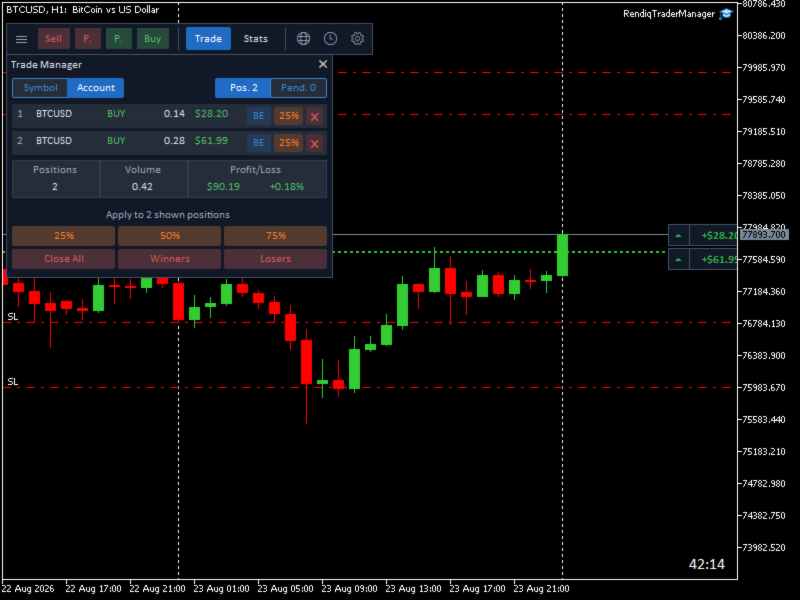
The Trade window also offers breakeven, individual close and bulk close controls. Closing winners, losers or all displayed positions is a separate operation from reducing a position by a percentage.
Volume and execution limits
Brokers impose minimum volumes and lot steps. A percentage may produce a requested reduction that does not fit those constraints, especially for a small position. The remaining volume must also satisfy applicable limits.
Practice on a demo account with your broker’s instruments. Do not repeatedly submit an action without checking whether the previous request executed.
For help installing the panel, see the getting-started guide. For every Trade setting, use the full illustrated manual linked below.